Spreadsheets
Compare two Excel workbooks
Compare two Excel files cell by cell: open both .xlsx workbooks and read the changed values and formulas. The comparison runs on your machine.
- Format
- .xlsx
- Compared
- Cells and formulas
- Upload
- None
- Cost
- Free
Open both workbooks
Choose the two .xlsx files. Changed values and changed formulas are listed apart, cell by cell.
compare.xlsx
Runs locallyChoose two .xlsx workbooks and press Compare.
What an Excel diff compares: cells, values, and formulas
An Excel diff is a cell-by-cell comparison of two workbooks. Cells are matched by their Excel address, not by visual position. A changed number, a changed status, a removed invoice, and a new column all appear as separate entries, each with the address and both sides.
Values and formulas are compared separately, which is the part that matters most in a workbook. Formula text is read from the cell, and the cached result is read from the file at the same time. If the formula changed from =D5*0.2 to =D5*0.25 and the cached total changed with it, the cell is labelled Formula + value; a recalculated result with the same formula is Value changed; a formula edit that happens to produce the same result is still Formula changed. Excel stores the last calculated value in the file, so the tool compares that cached result rather than recalculating the workbook.
| Workbook part | How it is compared |
|---|---|
| Cell address | B7 is compared with B7, even when rows above it moved. |
| Values | Text is compared character for character; numbers by numeric value, so 1200 and 1200.00 are unchanged. |
| Formulas | Formula text is read from the cell and compared separately from the cached result. |
| Change labels | Formula changed, Value changed, and Formula + value keep a formula edit apart from a recalculated total. |
| Worksheet scope | Only the first worksheet is read; move the tab you need into the first position. |
When you compare Excel files, the stored value is what counts: a date is read by the serial number Excel keeps, not by the format shown on screen.
Month-end reconciliation
Month-end reconciliation is the clearest use for an Excel diff. The accounts-payable ledger and the payment run are often exported from different systems, and both describe the same invoices. A single transposed digit, a status that did not update, or an invoice posted twice can take an afternoon to find by eye. Comparing two exports might show that INV-1002 moved from 840 to 860, that its status changed from Pending to Paid, that INV-1003 is missing, and that a new invoice was added. Each is a different question, but the diff puts them in one pass. Formula changes need separate attention: if the tax formula changed from =D5*0.2 to =D5*0.25, the formula label makes that visible even when the cached total looks plausible.
Checking a data migration before and after
Data migrations produce the second common case: an export from the old system, an export from the new system, and a short window to prove that nothing was lost. Row counts and spot checks are not enough. A customer ID that became a number, a postal code that lost its leading zero, a date that shifted by a day, or a column that arrived empty can all survive a quick visual check. Read the diff by column. Added cells in one column usually mean a new field; removed cells in the key column mean records did not migrate; scattered value changes point to a transformation rule. Watch columns that look numeric but are identifiers: Excel treats a text ID and a number with the same digits as different cells. Migrated workbooks often lose formulas, which the diff reports as removed; exporting both sides as values gives a cleaner comparison.
A real comparison: two invoice exports
The screenshot below shows what you see when you compare Excel files in the browser. The left file has five invoices and seven columns. The right file keeps the first invoice, changes the second invoice's amount and status, removes the third, revises the fourth's tax formula, adds an Approved column, and adds a sixth invoice. The summary separates added, removed, modified, value, and formula counts.
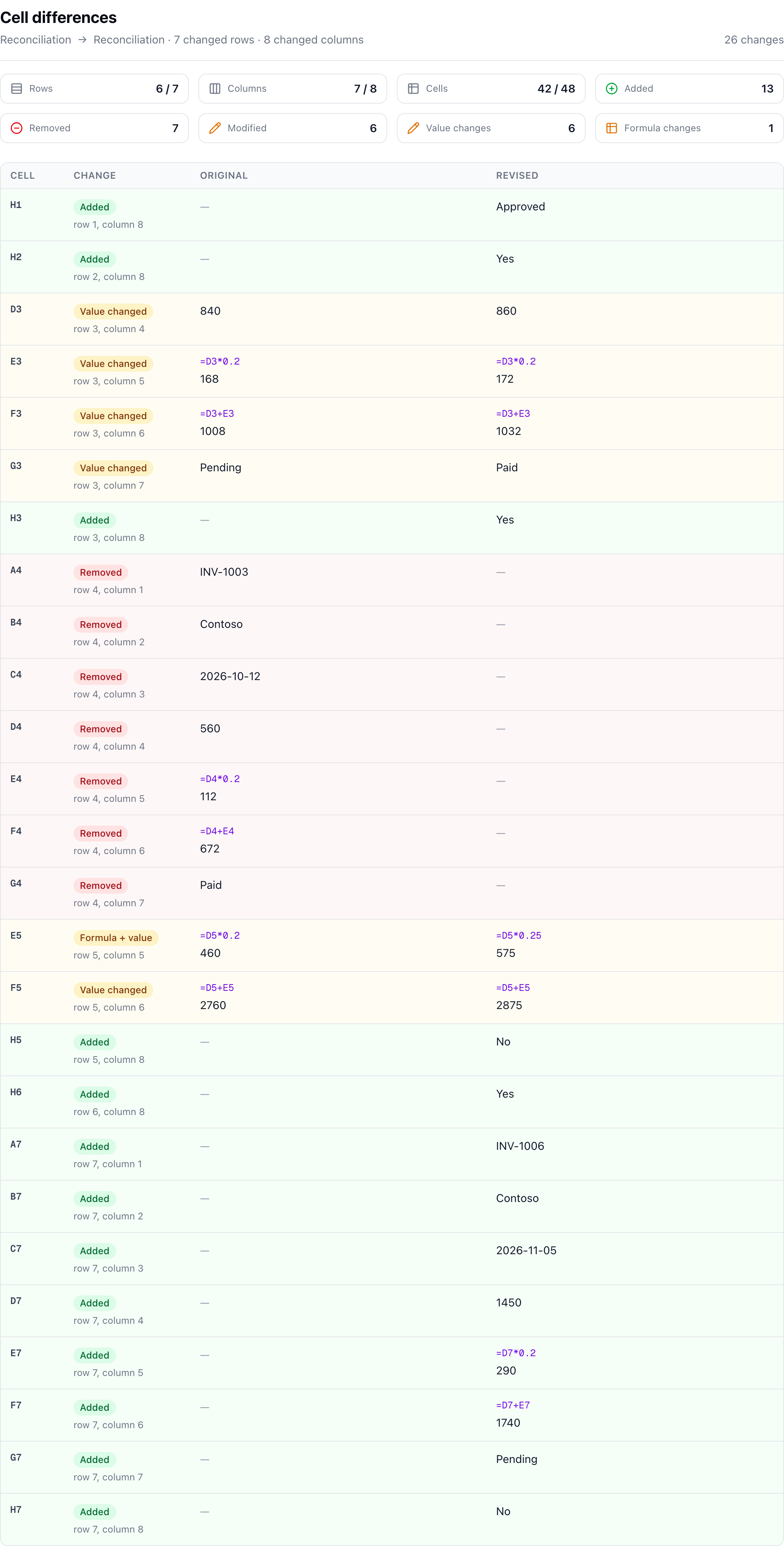
The table gives the exact address and both sides. A formula is shown above its cached value, so a changed formula is not confused with a changed result. In this example, D3 moved from 840 to 860, E3 kept its formula but recalculated from 168 to 172, E5 changed from =D5*0.2 to =D5*0.25, and row 4 disappeared entirely. The new Approved column adds a decision to every remaining row.
Row order and the limits of a workbook diff
An Excel diff is deterministic, but it is not magic. Cells are matched by address, so inserting a row near the top moves every row below it and produces a block of changes even when the data is intact. Only the first worksheet is read, and .xls files are not supported: open the old file in Excel and save it as .xlsx. Formatting, colours, merged cells, charts, pivot tables, comments, and macros are not compared. Formulas are not recalculated; recalculate and save in Excel first if the cached values are stale. To compare Excel files across systems, export both sides with the same columns in the same order, and treat every change as a question rather than a verdict.
A workbook that never leaves your machine
Payroll files, forecasts, and customer lists are not documents to hand to a stranger's server. The .xlsx package is unpacked and compared in the browser; the file is never sent to an upload endpoint, there is no account, and no copy remains after you close the tab. You can confirm it in your browser's Network tab. To compare two workbooks without an upload, choose the two local files here and read the address list.
Need another format? Compare Word documents with the Word diff tool, text-based PDFs with the PDF diff tool, JSON with the JSON diff tool, source files with the code diff tool, or paste plain text into the text compare tool.
Questions about Excel files
Straight answers to the questions people ask before they compare two files.
How do I compare two Excel files?
Select the earlier .xlsx workbook in the left card and the revised .xlsx workbook in the right card, then click Compare Excel Files. The tool reads the first worksheet from each file and lists every added, removed, and changed cell by address (A1, B7, and so on). You can also click Try a sample pair to see the result before choosing your own files. People compare two Excel files most often to reconcile exports, verify a migration, or confirm that only the intended cells changed.
Does this excel diff compare formulas as well as values?
Yes. Formula text and the cached result are compared separately. A formula change is reported as Formula changed, a recalculated result with the same formula is reported as Value changed, and a cell where both differ is labelled Formula + value. Excel stores the last calculated result in the file, so the comparison uses that cached value rather than recalculating the workbook. That separation is the difference between an Excel diff and a value-only check: a formula edit that produces the same total is still reported.
Can I compare two spreadsheets with different row orders?
Yes, but cells are matched by Excel address, not by invoice number or row label. If a row is inserted or deleted near the top, every row below it moves to a different address and the result will show a large block of changes. For the cleanest result, compare exports that use the same row order, or delete empty rows and keep the key column first.
Are .xls files supported?
No. This tool reads .xlsx workbooks only. Open the old .xls file in Excel, choose File > Save As, and save it as .xlsx before comparing. Password-protected workbooks must be saved without a password first; the tool cannot open encrypted files.
Which worksheet is compared?
The first worksheet in the workbook. If the data you need is on another tab, move that tab to the first position, or copy the data into a new workbook with a single sheet. Cells beyond the first worksheet are not read, which is stated here rather than silently ignored.
Is my spreadsheet uploaded to a server?
No. The .xlsx file is unpacked and compared in your browser, and the file is never sent to an upload endpoint. There is no account, no server-side copy, and no retention after you close the tab. You can confirm this in your browser's Network tab.
Does it compare formatting, colors, merged cells, or charts?
No. The comparison covers cell values and formulas only. Fonts, colors, fills, borders, column widths, row heights, number formats, merged ranges, comments, images, charts, pivot tables, and macros are not compared. Date cells stored as Excel serial numbers are compared by that stored number, not by the date format shown on screen.
Can it compare scanned or image-only spreadsheets?
No. A picture of a table has no cell values for the tool to read, and this tool does not perform OCR. If a workbook contains only an inserted image, the comparison will report that no readable cells were found. Use the original .xlsx export, or run the image through OCR and rebuild the cells first.