PDF files
Compare two PDF files
Open two text-based PDFs and read the paragraphs that changed. A scanned page gets a clear warning instead of a silent miss.
The Supplier shall deliver within five working days.
Changed · clause 4.2The Supplier shall deliver within two working days.
- Format
- Text-based .pdf
- Compared
- Page text
- Scanned
- Named, no OCR
- Upload
- None
Open both PDFs
Choose the two files. Text is read from each page; a page with no text layer is named, not guessed.
compare.pdf
Runs locallyText-based PDFs only. Scanned pages are images, so there is no text to extract. Run OCR first, or compare the original digital PDFs.
Choose two PDFs and press Compare.
What a PDF diff can read
A PDF is a container for drawing instructions, not a document outline. Two files can look identical while storing their text in a different order, or look different because of a font substitution while the words are unchanged. This tool opens each file, extracts the characters and their positions, rebuilds lines and paragraphs from those positions, and only then compares the two documents.
Text-based PDF
Characters are stored with their positions. Select a sentence and it highlights. Exports from Google Docs, LaTeX, InDesign, LibreOffice, and Print to PDF normally qualify.
Scanned PDF
Each page is a picture. Selecting text selects the whole page or nothing. There is no text layer to compare, and this tool does not invent one with OCR.
Check the file first: open it and try to select a sentence. If the characters highlight and copy, the tool can read them. If the whole page highlights as one block, or nothing selects at all, the page is a scan and its words are not available to a text diff. A partly scanned PDF is handled page by page: pages with selectable text are compared, and pages without a text layer are named rather than silently skipped.
This tool does not run OCR, deliberately. OCR guesses characters from shapes, can misread a number or a defined term, and may guess differently on each version, which creates false confidence. If you only have scans, run them through OCR first to create searchable copies, then compare those. When you compare PDF files, the result is a text comparison: fonts, colours, margins, page breaks, images, signatures, stamps, annotations, and comments are outside it.
Reviewing a contract without tracked changes
A counterparty returns a forty-page master services agreement as a PDF and calls the changes minor. There are no tracked changes in the file, and the previous execution copy is the only baseline. Reading both documents side by side is slow, and a changed number inside a dense clause is easy to miss. A PDF diff turns the review into a short list: the payment period moves from thirty to forty-five days, the liability cap from six to twelve months, the termination notice from sixty to thirty days, and the late-payment rate from 1.5% to 2%. A non-solicitation clause disappears and a data-protection clause appears, each attached to a paragraph number and shown in context. The reviewer still decides whether each change is acceptable; nobody has to hunt for it first. A scan or an image-only export of the agreement has no text layer to compare.
Proofreading a thesis chapter
A supervisor returns a thesis chapter as a PDF with comments in a separate email. The author has the PDF that was submitted last week. The new file contains a rewritten introduction, two reordered subsections, a softened claim, two new citations, and a table moved to an appendix. The author needs to know which requested edits were applied and which paragraphs are new. A PDF diff keeps that revision review concrete. Added paragraphs identify new material that needs a citation check; removed paragraphs identify text that was cut; modified paragraphs show the exact wording that moved, including a claim that changed from "significant" to "consistent". Unchanged paragraphs confirm that the methods section really did not move. Pagination is not compared: a paragraph that moved from page 12 to page 13 is still the same paragraph.
A real comparison: two versions of an agreement
The screenshot below shows the result when you compare PDF files in the browser. Both files contain seventeen non-empty paragraphs: a title, an introduction, seven numbered headings and their clauses, and a signature line. The tool reports five modified paragraphs, two removed, two added, and ten unchanged - nine changes in total. The service text gained "support and maintenance", payment moved from thirty to forty-five days, interest from 1.5% to 2%, liability from six to twelve months, and notice from sixty to thirty days. The non-solicitation heading and clause were removed; a data-protection heading and clause were added.
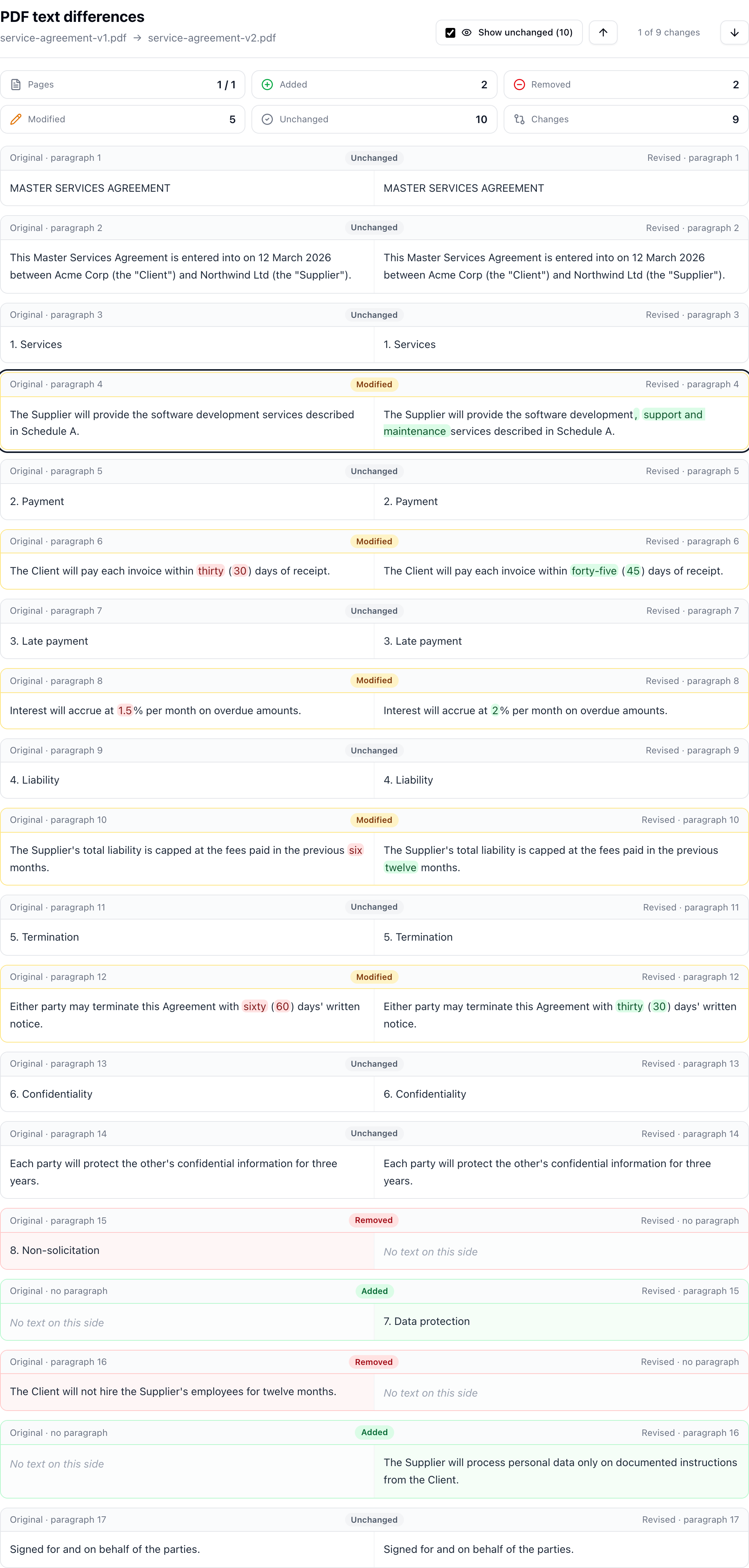
Because the removed and added clauses are not similar enough to be one rewrite, the tool lists them as separate rows. A plain line-by-line diff would have shown them as one large block and made the renumbered headings look unstable. Rebuilding paragraphs from the text's positions keeps each change in its own row, so a two-page review stays a two-page review.
Reading order, and what the text layer hides
A PDF stores text as positioned runs, and one visual line can arrive as several runs. The extractor sorts those runs by vertical position, merges the ones that share a line, and starts a new paragraph when the gap or the indentation changes. That matters in a two-column paper, where a naive extraction can read across both columns and produce paragraphs that never existed on the page. Equations, special symbols, and some ligatures can extract imperfectly, and figures or tables embedded as images are not read at all. In a two-column paper, check section headings where a column boundary falls inside a change.
A PDF diff that never uploads
Most online PDF comparison services ask you to upload both files before showing a result. That is a problem for contracts, personnel records, and unpublished research. This tool opens the PDF with a PDF.js worker served from this site, rebuilds the text locally, and runs the diff in the page. There is no upload endpoint and no copy left behind after you close the tab. To compare PDF files cleanly, export both versions the same way, remove passwords, and check for selectable text first; a digital export compared with a scan produces noise. No account or installation is needed, and neither file is modified.
Need another format? Open Word files with the Word diff tool, Excel workbooks with the Excel diff tool, JSON with the JSON diff tool, source files with the code diff tool, or paste plain text into the text compare tool.
Questions about PDF files
Straight answers to the questions people ask before they compare two files.
The Supplier shall deliver within five working days.
The Supplier shall deliver within two working days.
How do I compare two PDF files?
Select the earlier PDF in the left card and the revised PDF in the right card, then click Compare PDF Files. The tool extracts the selectable text, aligns the paragraphs, and lists every added, removed, and modified paragraph with the changed words highlighted. Both files are read on your device.
What is a PDF diff?
A PDF diff compares the text inside two PDF files. It reports which paragraphs were added, removed, or rewritten and highlights the words that differ inside a modified paragraph. It is a text comparison, not a pixel comparison: fonts, colours, layout, images, and signatures are not included.
Can I compare scanned PDFs?
No. A scanned PDF contains pictures of pages, not text characters, so there is nothing for a text diff to read. This tool does not perform OCR. Run the scan through OCR first to create a searchable PDF, then compare that copy. If OCR is not possible, use a visual side-by-side review.
Does the tool compare formatting, images, or signatures?
No. It compares extracted text only. Bold and italic styling, fonts, colours, spacing, page breaks, images, signature images, stamps, annotations, comments, and metadata are not compared.
Are password-protected PDFs supported?
No. An encrypted PDF cannot be opened without its password, so its text cannot be extracted. Remove the password or export an unprotected copy, then compare that copy.
What happens when only some pages are scanned?
The tool compares every page that contains selectable text and warns you about the pages that do not. Those pages are skipped because they contain no characters. If they matter, OCR them and compare the searchable version.
Is there a file size or page limit?
No account, quota, or server-side limit. Because the PDF is parsed in your browser, the practical limit is your device's memory and the PDF's complexity. A large scanned file usually fails earlier because it has no selectable text.
Is my PDF uploaded to a server?
No. A PDF.js worker served from this site opens the file, and the extracted text is compared on your device. There is no upload endpoint and no copy left behind after you close the tab. You can confirm this in your browser's Network tab.